Tutorial · 5 min read
Designing a WhatsApp Chatbot People Do Not Abandon

The engineering of a WhatsApp bot is a weekend. Receive a webhook, look at the text, send a reply. Everything difficult about it is conversation design, and conversation design on WhatsApp is unusual because of one constraint that does not exist on a website: you do not control when the conversation continues.
A web chat widget lives as long as the tab is open. A WhatsApp thread lives in the customer's pocket, and they may answer your question in four seconds or on Thursday. Everything below follows from that.
The window is the design brief
When someone messages your business, a 24-hour customer service window opens and you can reply freely inside it. When it closes, you can only reach them with a pre-approved template, and only if they have opted in.
So a bot flow with eight sequential questions is not a UX problem. It is a structural one: if the customer wanders off after question three, the flow cannot resume itself. Your options are to wait for them to come back, or to send an approved template that nudges them and hope their reply reopens the window.
Assume every question you ask is the last one they will answer. Design so that is still an acceptable outcome.
The four things a bot should actually be
Not a personality. Not a maze. Four jobs, in descending order of value:
- Answer the repeated questions. Hours, location, price ranges, stock, order status. If four or five questions cover most of your inbox, automating just those is most of the available win.
- Collect the one thing a human will need. Order number, pin code, which service. A person picking the thread up should not have to ask for it again.
- Route. Sales, support, billing. Getting the thread to the right person quickly beats answering it slowly and generically.
- Get out of the way. Every bot needs a sentence that reliably reaches a human, and it should work on the first attempt rather than the third.
The failure mode of ambitious bots is that they treat step four as a defeat. It is the feature. A customer who can always reach a person forgives an automation that occasionally does not understand them.
Interactive messages beat free text where you can use them
The Cloud API supports interactive message types — reply buttons and list messages — and they are worth reaching for. A menu of three buttons produces a clean, unambiguous input. Free text produces "hnji bhaiya kitne ka hai", which is a perfectly normal thing for a customer to write and a genuinely hard thing to parse.
Use buttons for branching. Use free text for the things people are better at expressing in their own words, like a description of a problem. Do not make someone tap through four menus to reach an answer that one sentence would have given them.
Keyword routing, and where it breaks
Keyword matching is unglamorous and does more work than people expect. Case and punctuation should be ignored — "Price?" and "price" are one question. Beyond that, two specific failures:
- Negative keywords. Someone writing "not interested" contains no trigger word you planned for, and if it does contain one, replying is worse than silence. Maintain a stop list.
- Transliteration spread. "kitna", "kitnaa", "kitne", "kitne ka", "kimat", "keemat" are all the same question. On an Indian number this is not a corner case, and it is the strongest argument for putting a language model behind the keyword layer rather than in front of it.
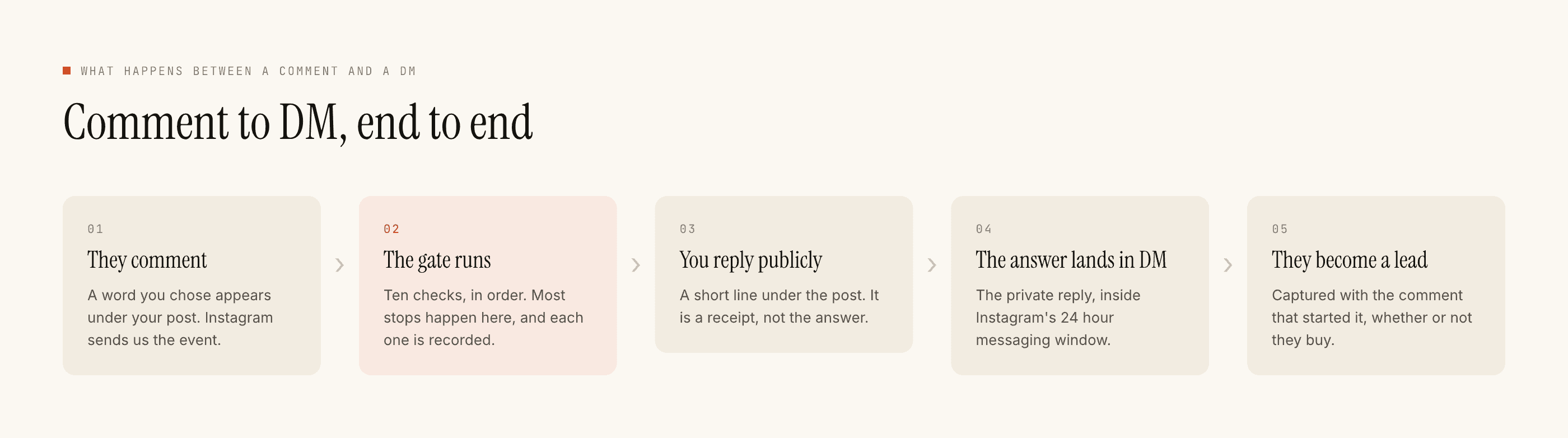
That difference is worth pausing on. Instagram gives you a public entry point — a comment under a post that anyone can leave, which the automation turns into a private conversation. WhatsApp has no comments. Every conversation starts because someone already had your number, scanned a code, clicked an ad, or you sent them a template they had opted into. The bot is downstream of a traffic problem you have to solve elsewhere.
State, and how little of it you need
Teams reach for a flow engine early. Usually what they need is a small record per contact: what the last question was, what they answered, when the window closes.
Two rules that prevent most of the pain:
- Expire the state. A half-finished flow from nine days ago should not resume when the customer says "hi". Start fresh.
- Make every branch idempotent. Duplicate webhook deliveries happen. Key on the message ID so the same inbound message cannot advance the flow twice.
Testing, and the part nobody does
Send the whole flow to your own number and walk it as a customer. Then deliberately break it: reply with something off-script, stop halfway, answer a question a day late, send a voice note. The flow that survives all four is production ready. The one that only survives the happy path will meet a real customer within the hour.
Where to go next
If you have not stood the platform up yet, start with the setup sequence — verification is the long pole and everything else waits on it.
If you are deciding how much of the routing should be a language model, that trade-off is its own post. And if you want to see the same design problem solved on a channel with a public entry point, the Instagram comment-to-DM pattern is documented here.