Tutorial · 5 min read
How to Set Up the WhatsApp Cloud API: Every Step
On this page

Nothing about the WhatsApp Cloud API is technically hard. What surprises people is how much of it is administrative, and how many of the administrative steps are one-way doors. You can undo a bad webhook in a minute. You cannot un-register a phone number over lunch.
So the useful version of this guide is not a list of buttons. It is the order the doors open in, and which ones you should be sure about before walking through.
The two WhatsApps, and why people set up the wrong one
There is a free WhatsApp Business app. You install it on a phone, it gives you a catalogue, labels, quick replies and away messages, and it costs nothing. It has no API. Nothing outside that phone can send a message through it.
Then there is the WhatsApp Business Platform, which most people mean when they say Cloud API. It is programmatic, hosted by Meta, and it is what any automation actually talks to.
What Meta asks for, in order
- A Meta Business account. The container everything else hangs off. If you already run ads, you probably have one, and reusing it is better than creating a second.
- Business verification. Meta checks that the legal entity you claim exists — documents in the entity's name, a matching address, sometimes a phone or domain check. This is the step that takes days rather than minutes, and it is the one to start first.
- A WhatsApp Business Account. Created under the business account. It holds your phone numbers, your templates and your quality signals.
- A phone number, registered and verified. It receives a code once and then belongs to the API. See the warning above.
- A display name. Meta reviews it against its own naming policy. A name that has nothing to do with the verified business gets rejected, and the rejection costs you another review cycle.
None of this is difficult. All of it is sequential, which is why "we will set up WhatsApp this week" is usually optimistic by a fortnight.
The token, the webhook, and the first message
Once the account exists, sending is genuinely simple: an access token, a phone number ID, an HTTP request. Most people get a message onto their own phone within an hour of verification clearing.
Receiving is the half that gets skipped. Inbound messages arrive at a webhook you host — Meta calls your URL, you acknowledge it, you process it out of band. Two things go wrong here for nearly everyone:
- You acknowledge slowly. Do the work after you respond, not before. A webhook that waits on your database gets retried, and retries look like duplicate messages.
- You do not dedupe. The same event can arrive twice. Key on the message ID and ignore what you have already seen.
The window is the constraint you are actually designing around
This is the part worth understanding before you write a single line of copy, because it shapes everything.
When a customer messages you, a 24-hour customer service window opens. Inside it you can reply freely — plain text, in your own words, as many turns as the conversation needs. Once it closes, free-form messages stop being an option. To reach that person again you need a pre-approved template.
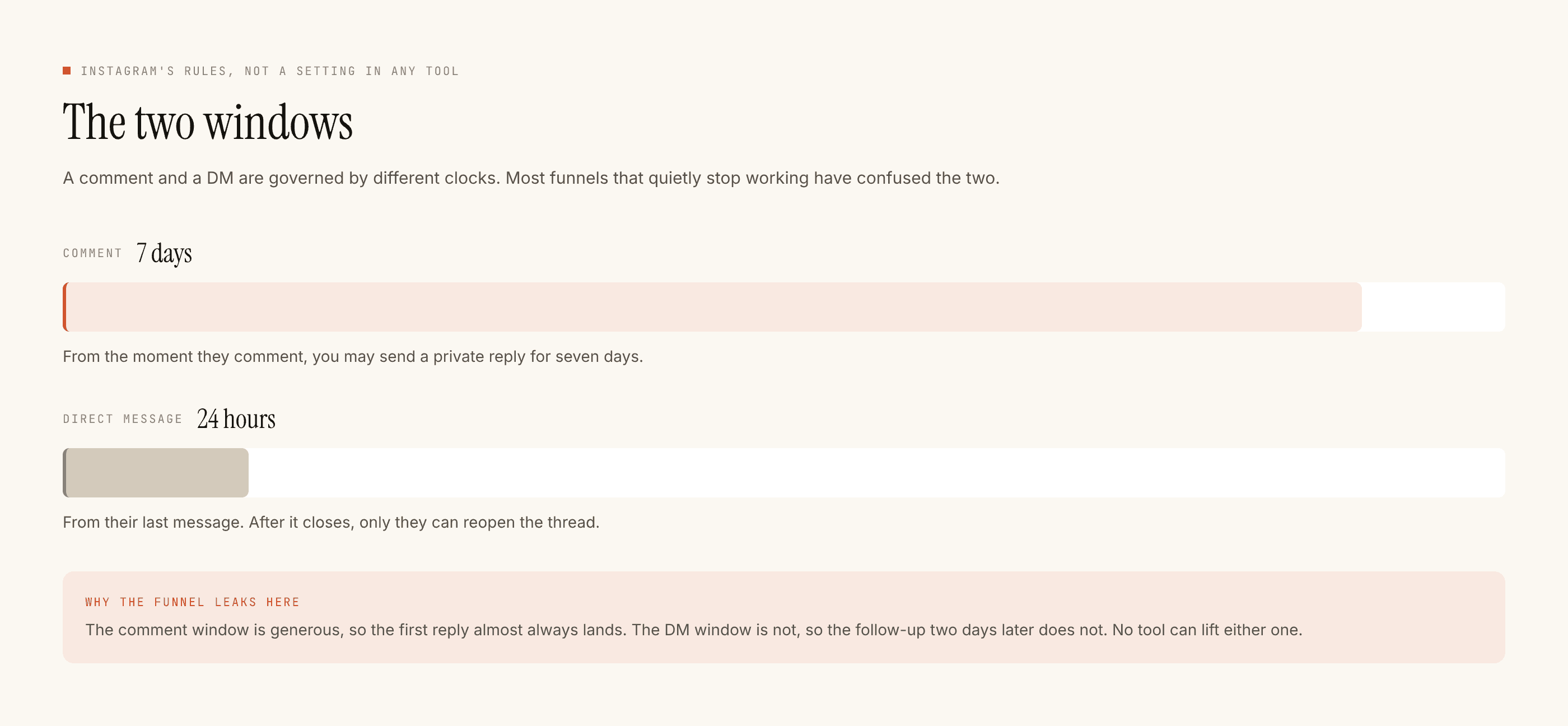
The rule behind both platforms is identical and worth saying plainly: the customer decides when you are allowed to talk. Instagram gives you seven days on a comment and twenty-four hours on a DM. WhatsApp gives you twenty-four hours from their last message. In both cases your own message does not restart anything.
Every WhatsApp architecture decision is downstream of one question: is this conversation inside the window or outside it?
Templates are a queue, not a switch
Anything you initiate — a reminder, an order update, a promotion — is a template. You write it with placeholders, submit it to Meta with a category, and wait. It comes back approved or rejected.
Three things to plan for:
- Rejection is normal, especially on the first few. Vague placeholder-heavy copy and anything that reads like a mass promotion in a non-promotional category gets bounced.
- The category matters beyond approval. Meta prices conversations by category, so a template filed as marketing and a template filed as utility do not cost the same thing.
- Opt-in comes first. Meta requires businesses to obtain permission before sending template messages. An approved template is not permission; it is only a format.
Direct, or through a vendor
You can integrate with the Cloud API yourself, or through a Business Solution Provider who wraps it in an inbox, a template manager and a billing layer.
Direct
Through a vendor
Neither is wrong. What is wrong is choosing without knowing that Meta's per-conversation charges apply either way — a vendor's free tier covers their software, not Meta's messaging. The cost model is worth reading in full before you commit to a plan shape.
What the first fortnight should look like
Start verification on day one, because it is the long pole. While it runs, write the four or five templates you actually need and get them submitted early. Build the webhook next, and make receiving reliable before you make sending clever.
Then, before anything goes to a customer, send everything to yourself. That is the same discipline that makes Instagram automation survivable — test on yourself first, then go live on one thing — and the reasoning does not change with the channel.
If you are setting this up from India, the verification paperwork and the display-name review have their own texture, covered separately here.