Tutorial · 5 min read
How WhatsApp Reply Automation Works, Window and All

Almost every guide to automating WhatsApp replies describes the easy half. Someone messages you, a keyword matches, a reply goes out. That part is a switch statement and a webhook.
The half that decides whether your setup is any good is the other one: what happens when the person messages at 11pm, or answers your reminder three days later, or asks a question your keywords have never seen. Those are not edge cases. On a busy number they are most of the traffic.
Two mechanics, not one
WhatsApp splits reply automation cleanly in two, and it is worth being pedantic about which side you are on at any moment.
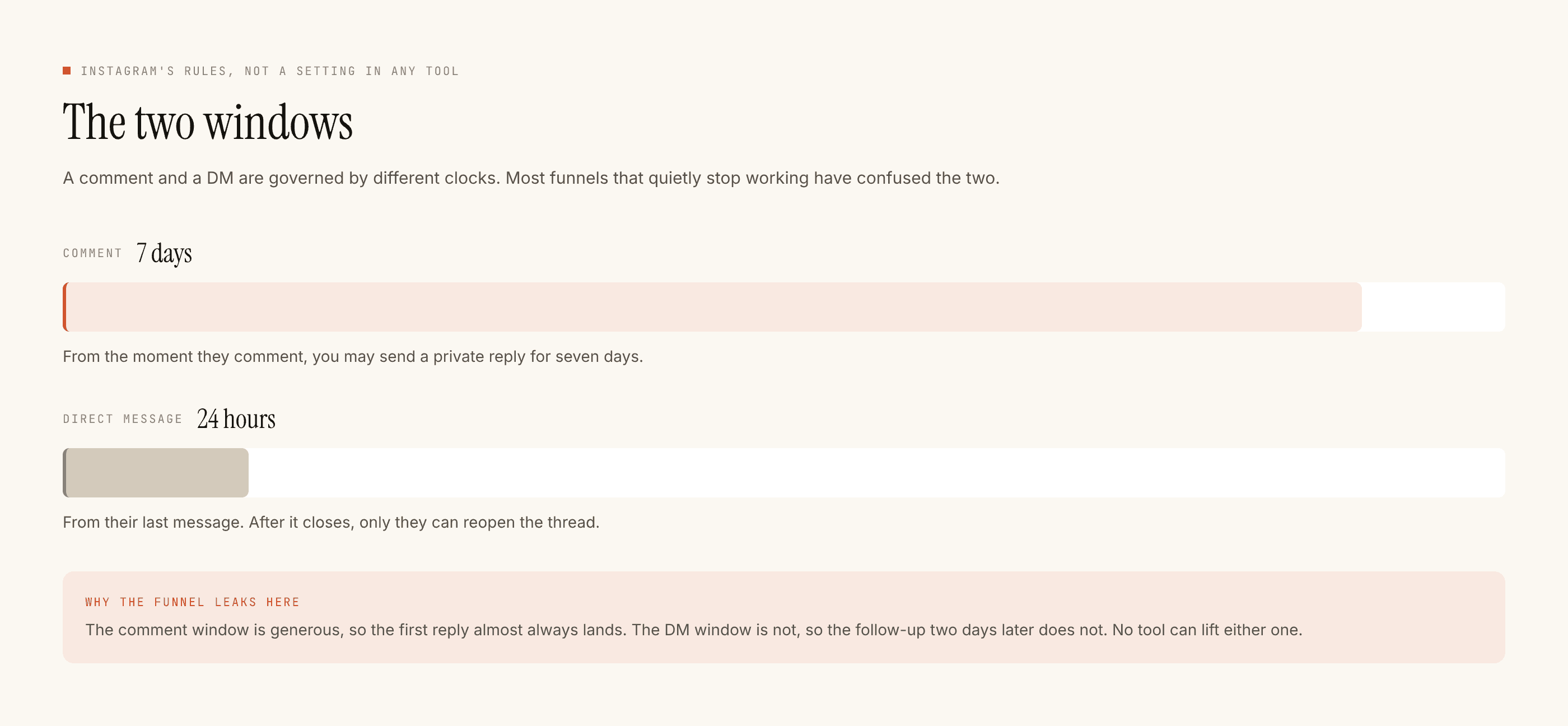
Inside the window. When a customer sends you a message, a 24-hour customer service window opens. Inside it you can reply with free-form text — anything you like, as many turns as the conversation needs, no approval required. This is where real automation lives.
Outside the window. The window closes 24 hours after their last message. After that, only a pre-approved template may be sent, and only to someone who has opted in. You cannot answer a two-day-old question with a paragraph you wrote this morning. You can send an approved template that invites them to reply, and their reply reopens the window.
An automation that only works inside the window is not broken. It is honest about what the platform allows.
What a sane inbound automation actually does
Strip the marketing off and there are five moving parts.
- Receive and acknowledge fast. The webhook responds first and does the thinking afterwards. Slow acknowledgements get retried, and retries look like the customer messaged twice.
- Dedupe on the message ID. The same inbound event can arrive more than once. Without a dedupe step your customer gets two identical replies, which reads worse than no reply at all.
- Route. Keyword match, intent classification, or a menu — pick one and be consistent. Matching should ignore case and punctuation, because "PRICE?" and "price" are the same question from a human being.
- Answer, or say you cannot. A confident wrong answer costs more than an honest handoff. The best automations have a short list of things they will answer and one clean sentence for everything else.
- Stand down when a human joins. The instant a person on your team replies by hand, the automation should stop for that thread. This is the single most underrated rule in the whole category.
That last one is worth dwelling on. Automation that keeps talking over your own staff produces the specific kind of conversation customers screenshot and post. On Instagram we call this takeover and it is a hard gate in our reply pipeline — a human reply stops the automation for that thread, full stop. The same discipline is the right default on any channel.
Off-hours, and the thing people get wrong
The temptation at 11pm is to have the bot handle everything. The better pattern is narrower:
- Answer the questions where an automated answer is genuinely as good as a human one — hours, location, whether something is in stock, where an order is.
- For everything else, acknowledge and set an expectation. "Team subah 10 baje se available hai, main aapka message unhe bhej deta hoon" is a better automated reply than a confident guess about a refund policy.
- Do not silently queue. If your system holds a reply until morning, the window may have closed by then, and you will need a template to get back in.
Keywords, menus and AI
Three routing styles, and most good setups use two of them.
Keywords and menus
AI-written replies
The version that survives contact with real customers is usually: templates for the handful of questions that make up most of the inbox, AI for the tail, and a person for anything with money or a complaint in it.
On Instagram, that is exactly how our metering works — templated replies are free and unlimited, and a credit is spent only when the AI writes something new. It is a pricing decision, but it is also a design opinion: most of your inbox does not need a language model. More on where AI genuinely earns its place.
Before you turn anything on
Send every reply to yourself first and read it as a customer, not as the person who wrote it. Tone is the only part of this that no system can check for you.
Then watch what your automation refuses to do, not what it does. The refusals — window closed, duplicate suppressed, human took over — are where you learn whether the setup is sane. That is the habit that makes automation last, and it is the same one we recommend for a first week on Instagram.
If you are building the routing layer rather than buying it, the chatbot design post goes further into conversation shape.