Tutorial · 4 min read
WhatsApp and Zapier: What the Automation Layer Cannot Fix

The appeal of putting Zapier in front of WhatsApp is obvious: a form submission, a CRM stage change, a payment event, anything at all, and a message goes out. Thousands of possible triggers, no engineering.
The thing worth understanding before you build it is that Zapier changes what can start a message. It changes nothing about what WhatsApp will accept. Every rule that applies to a hand-sent message applies identically to one fired by a zap, and most of the disappointment in this integration comes from expecting otherwise.
What the rules do to your zap
- Outside the 24-hour window, only a pre-approved template may be sent. Your zap can pass any text you like into an action. If the recipient's window is closed, only approved template content goes out. A zap cannot compose a fresh sentence to a cold contact.
- Opt-in is still required. A row appearing in a spreadsheet is not consent. Whatever list your zap reads from has to carry a real opt-in record.
- Category still applies. The template you fire determines the category, and Meta prices and reviews accordingly.
- Rate and quality still apply. A zap that loops, or one connected to a noisy trigger, can push volume you did not intend, and the quality rating notices before your finance team does.
Zapier is a trigger layer. It has no authority over what WhatsApp permits, and no tool in the middle does.
How the connection is usually shaped
There is no path where Zapier talks to WhatsApp with no platform account behind it. What varies is what sits in between.
Through a provider's Zapier app. Most WhatsApp software vendors publish one. You pick a template, map fields into its variables, and the vendor handles the API call, the retries and the delivery status. Simplest, and you are inside whatever that vendor allows.
Through a webhook action. Zapier calls the Cloud API directly, or calls a small service you host that then calls it. Full control, and you own authentication, error handling, and every failure mode.
Provider app
Webhook to the API
Where zaps genuinely earn their place
Not in the messaging. In the wiring around it.
- Inbound routing. A WhatsApp message arrives, a zap files it into your CRM, creates a ticket, or alerts a channel. Nothing here is constrained by the window, because you are not sending anything.
- Consent capture. A form submission with a WhatsApp opt-in becomes a record in your contact store, with the timestamp and the wording preserved. This is boring and it is the single most useful zap in the set.
- Handoff. A high-value conversation triggers an assignment to a person. Automation deciding who answers is more valuable than automation deciding what to say.
- Reconciliation. Delivery failures written back to the source system so your list stops trying a dead number every week.
Idempotency, again
Zapier retries. Zaps get re-run during testing. A record edited twice fires twice. None of that is unusual, and all of it produces duplicate messages unless you prevent it.
The cheap fix is a dedupe key — contact plus template plus a coarse time bucket — checked before send and recorded after. It takes an hour to build and it is the difference between an integration you trust and one you watch nervously.
The comparison, since we get asked
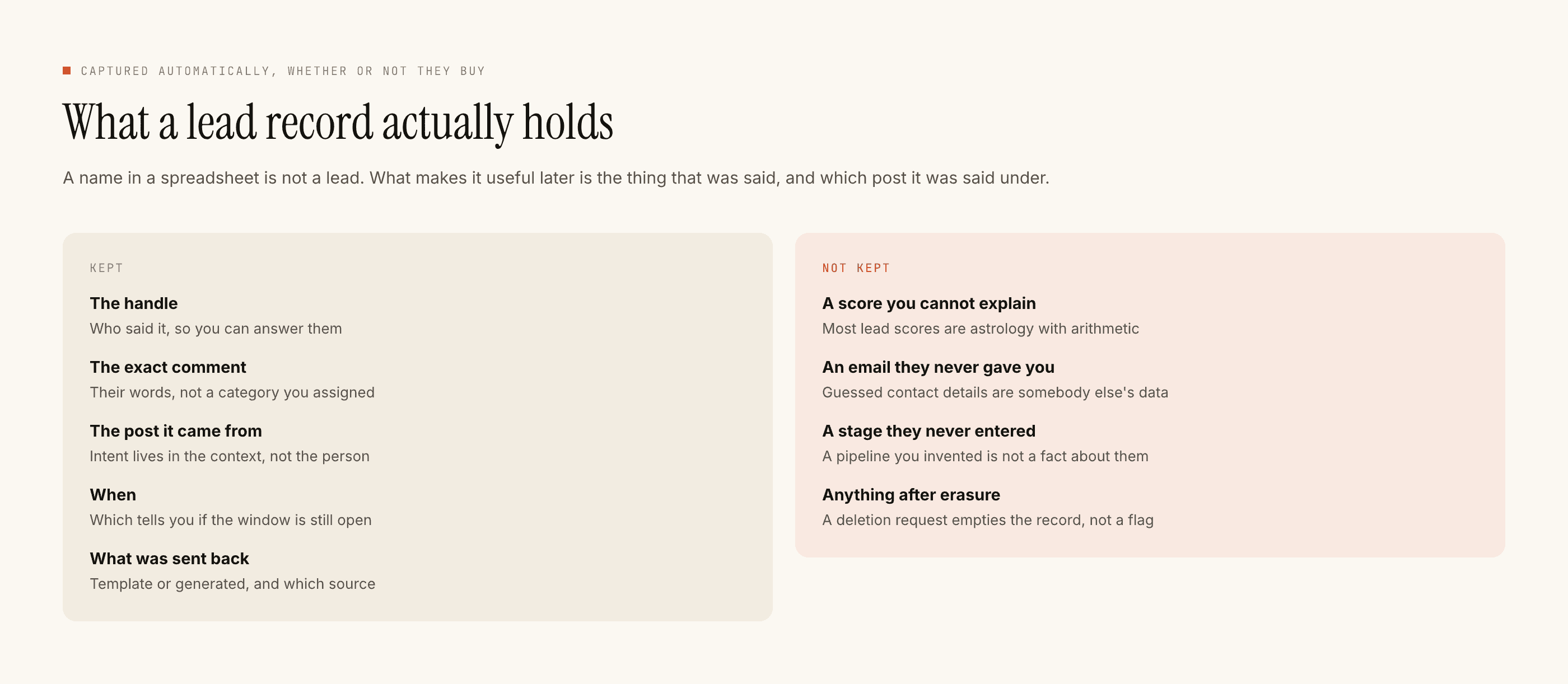
PostEngage works on Instagram, and we do not have one-click integrations. Captured leads leave as CSV, and you import them where you want them. That is a real limitation and we would rather say it than imply a marketplace we have not built.
What that constraint teaches, though, is worth carrying into any Zapier build: the integration layer is not the hard part of automation. The hard parts are consent, what you say, and knowing when to stop. A thousand connectors do not help with any of those.
The reply automation post covers the part that actually determines whether this works, and the cost model covers what a burst of well-intentioned zaps does to a bill. If you are wiring a store rather than a CRM, the Shopify post is more specific.